What Chrome’s documented capability confirms
Chrome’s native tab groups let you organize open pages together. On desktop, groups can have names and colors, and you can collapse or expand them. Grouping is an organizational action; it does not require closing the pages you put together.
That answers the capability question, but it does not establish that every grouping tutorial applies to your installation. Instructions for creating a group, saving it, or accessing it on another device can involve different requirements. Verify those separately rather than treating them as one guaranteed feature set.
A native group also does not automatically mean “all pages from this site.” You choose which tabs belong together. Grouping by exact hostname is a useful organizing rule for the example below, not a claim that Chrome automatically classifies every open tab by site.
Check these details before following instructions
Use this checklist before changing your tab layout. Google Chrome Help is the authoritative place to confirm the browser’s supported procedure; select the instructions for your platform.
- Confirm the browser. Make sure you are using Google Chrome, not another browser with a similar appearance. Shared browser technology does not guarantee identical controls.
- Check the version. On desktop, Chrome’s About Google Chrome page shows the installed version and update status. If an update requires a relaunch, finish any work that should not be interrupted first.
- Match the platform. Choose the Computer, Android, or iPhone and iPad guidance as appropriate. Do not look for a desktop right-click menu in a mobile tab overview.
- Match the action. Find the documented steps for creating a group or adding a tab. Do not substitute instructions about saving, sharing, or synchronizing groups.
- Compare with your interface. If the documented option is missing, stop and recheck the platform, version, and update status. Avoid experimenting with unrelated settings just to make a tutorial match.
You do not need an extension to check whether native grouping is available. Equally, a Chrome feature being available does not establish that a particular extension is compatible with your setup.
An illustrative five-tab decision
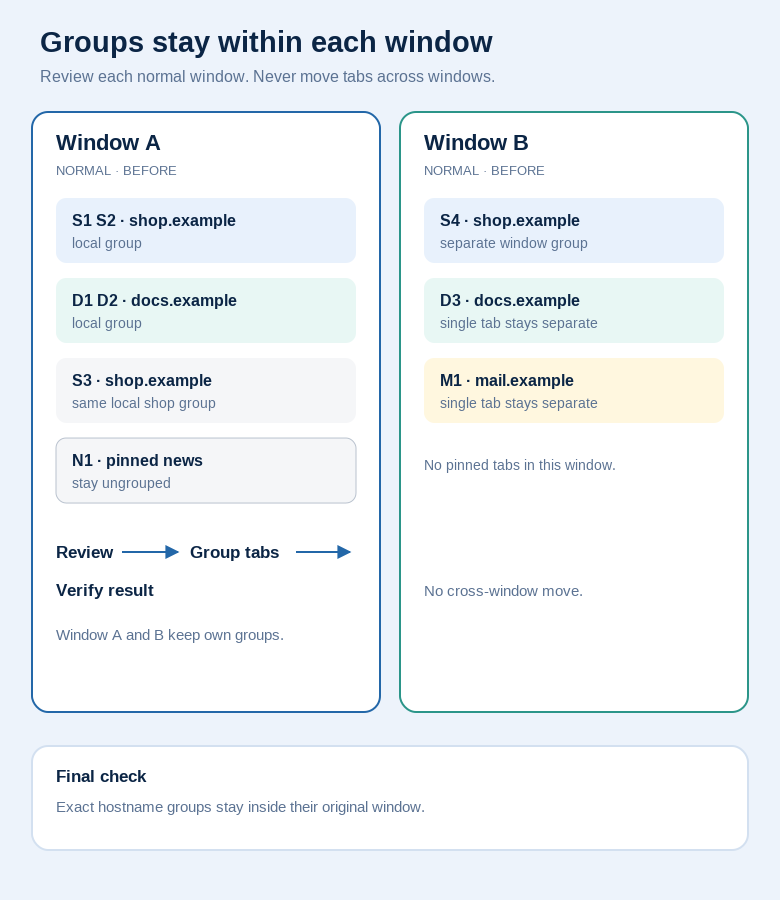
Consider a normal window containing two pages on shop.example.com, one on docs.example.com, a one-off news tab, and a pinned tab. This is an educational example, not a measured browser or product test. The goal is only to gather the two shopping pages while leaving everything else alone.
- Include both shopping pages. Their exact hostname is
shop.example.com, so they meet the chosen membership rule. Different page paths do not change that decision. - Exclude the documentation page.
docs.example.comis a different hostname. Sharing the endingexample.comdoes not put it inside this particular grouping boundary. - Leave the news tab separate. It is unrelated to the shopping task. There is no need to create a second group merely because another tab is open.
- Keep the pinned tab separate. It is outside the scope of this operation. Do not unpin it or assume how a grouping command handles pinned tabs.
- Apply only the verified native procedure. Once the Chrome Help instructions match your platform and interface, use them to group the two intended shopping tabs.
The expected result is one group containing the two shopping pages. The documentation page and news tab remain outside it, and the pinned tab stays pinned and separate. No page needs to be closed, and no other window needs to be reorganized.
Stop when that membership is correct. Automatic site classification, saved workspaces, and cross-device access are separate tasks, not prerequisites for answering whether Chrome can group these tabs.
Keep native support separate from extension claims
For this small example, Chrome’s native controls are sufficient once verified. Group Tabs by Site is a separate extension intended for bulk organization, but its requirements and compatibility must be checked independently; Chrome’s native feature alone does not prove support for that product on your browser and platform.
The practical next step is to check your Chrome version, open the matching Chrome Help instructions, and try a group with just the two intended tabs. If the documented controls do not match what you see, resolve that mismatch before applying a broader procedure.