What to check before choosing a Chrome tab-grouping extension
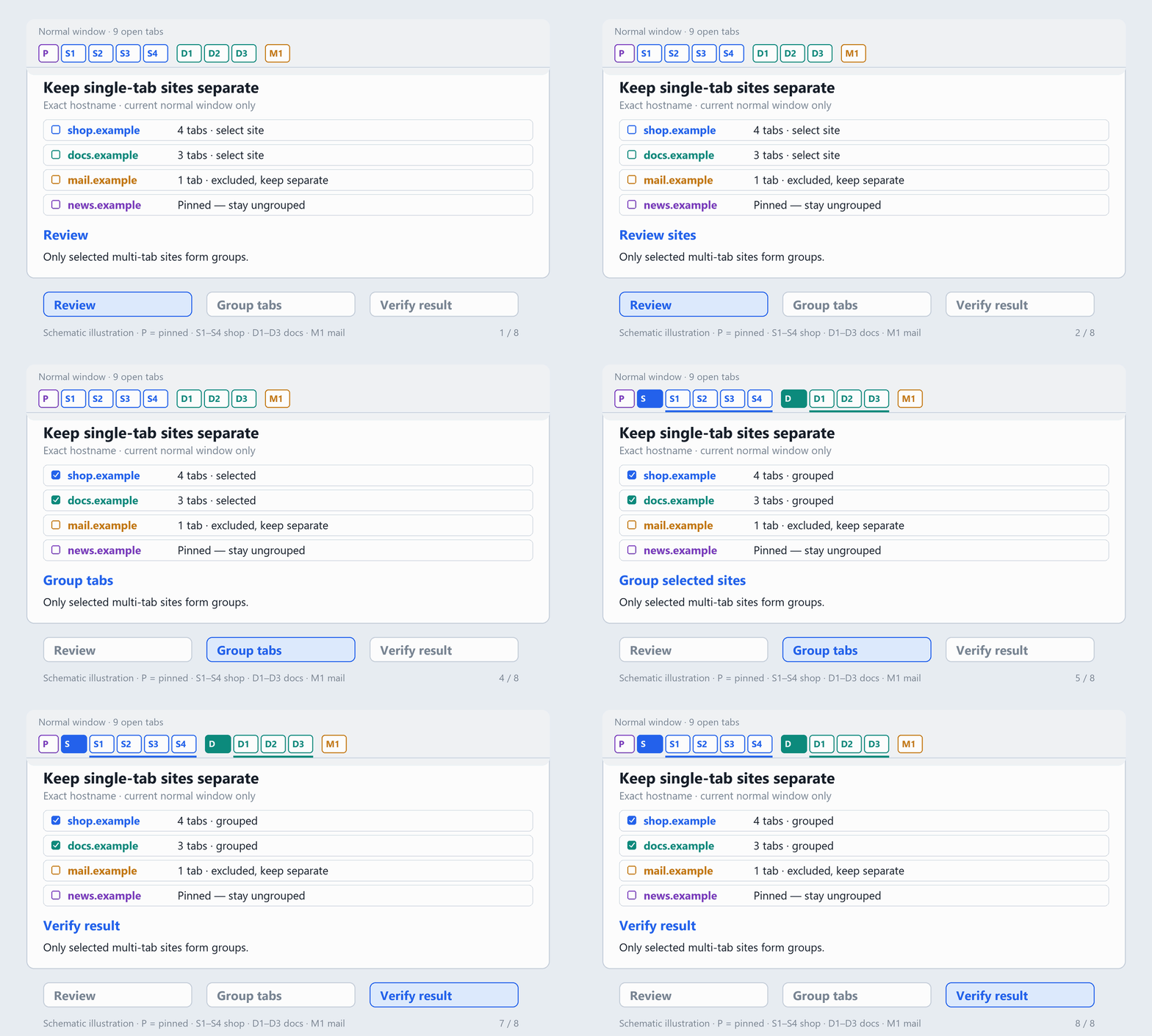
Review how exact hostname boundaries appear in the preview.
Define the workflow first
Write down the intended boundary. Is the goal to group tabs by exact hostname in one normal Chrome window, while leaving one-off pages, pinned tabs, private windows, and existing groups alone? Record the Chrome version and confirm that the extension supports the browser and tab-grouping APIs available there. If compatibility is not verified, treat the claim as unconfirmed rather than assuming that a Chrome label guarantees support.
The scope also affects the decision. A useful extension should make its window selection clear and should not silently move tabs between windows. Check whether single-tab sites can remain separate. That choice prevents a bulk operation from turning every isolated page into a group merely because it has a hostname.
Decision matrix for bulk preview
| Check | Native manual grouping | Extension workflow to verify | |---|---|---| | Membership | You inspect tabs and drag or select them yourself | Proposed groups show hostnames and their tabs before applying | | Exceptions | Pinned, one-off, and already-grouped tabs require personal tracking | A separate unchanged or excluded view identifies what stays out | | Scope | You work in the current window and must repeat the classification | You select the normal window or windows, with each window handled separately | | Existing groups | You avoid them manually | They remain unchanged unless you explicitly choose to add tabs | | Recovery | You reverse moves yourself | Undo is useful only for tabs still available and unchanged |
This comparison is not a feature-count ranking. Native controls may be enough for a small set. The extension earns consideration when seeing the proposed membership in one review is more useful than dragging each tab individually.
Worked selection scenario
Check which tabs remain ungrouped in the exception column.
The following is illustrative, not a measured product test. Assume one normal Chrome window contains two tabs on shop.example.com, one tab on docs.example.com, a one-off news tab, and a pinned tab. The decision is whether bulk preview has value for this small inventory.
- Select the normal window and inspect the proposed hostname groups. The two
shop.example.comtabs belong together because they have the same exact hostname. Thedocs.example.comtab forms a one-tab proposal, so leave single-tab sites separate if the aim is to group repeated sites only. - Exclude the news tab. Its hostname appears only once and does not meet the stated grouping purpose. Do not broaden the rule to include it just because the extension can classify it.
- Keep the pinned tab outside the proposed groups. Pinned status is an exception to the ordinary tab set, not evidence that the preview is incomplete.
- Review the unchanged column before applying. It should make the exclusions visible rather than silently absorbing them. Existing groups, if any, should also remain unchanged unless explicitly selected.
The expected result is one proposed group for the two shop tabs. The documentation tab, news tab, and pinned tab remain outside that operation. Nothing in this decision saves the session, renames unrelated tabs, hides pages, or triggers later automation. Those are separate claims that require separate verification.
Check the boundaries before applying
Confirm that grouping uses exact hostnames by default. A shared brand name does not prove that two subdomains will be combined. Also verify that private windows are excluded, pinned tabs stay separate, and each selected window is processed independently. A preview that does not reveal these boundaries is weaker evidence than one that does.
Check the undo wording as carefully as the grouping step. Undo may restore available tabs, but closed tabs, newly opened tabs, manual moves, or changed groups can create conflicts. Do not treat an undo button as a session backup.
For Chrome, Group Tabs by Site is relevant at the preview step: select a normal window, inspect the proposed exact-hostname membership, and decide which sites to include before applying. Its value here is reviewed bulk classification, not a promise of compatibility with every browser, automatic grouping, or saved workspaces. If the illustrative inventory matches your real task, make the choice from the visible membership and exceptions rather than from the number of advertised features.