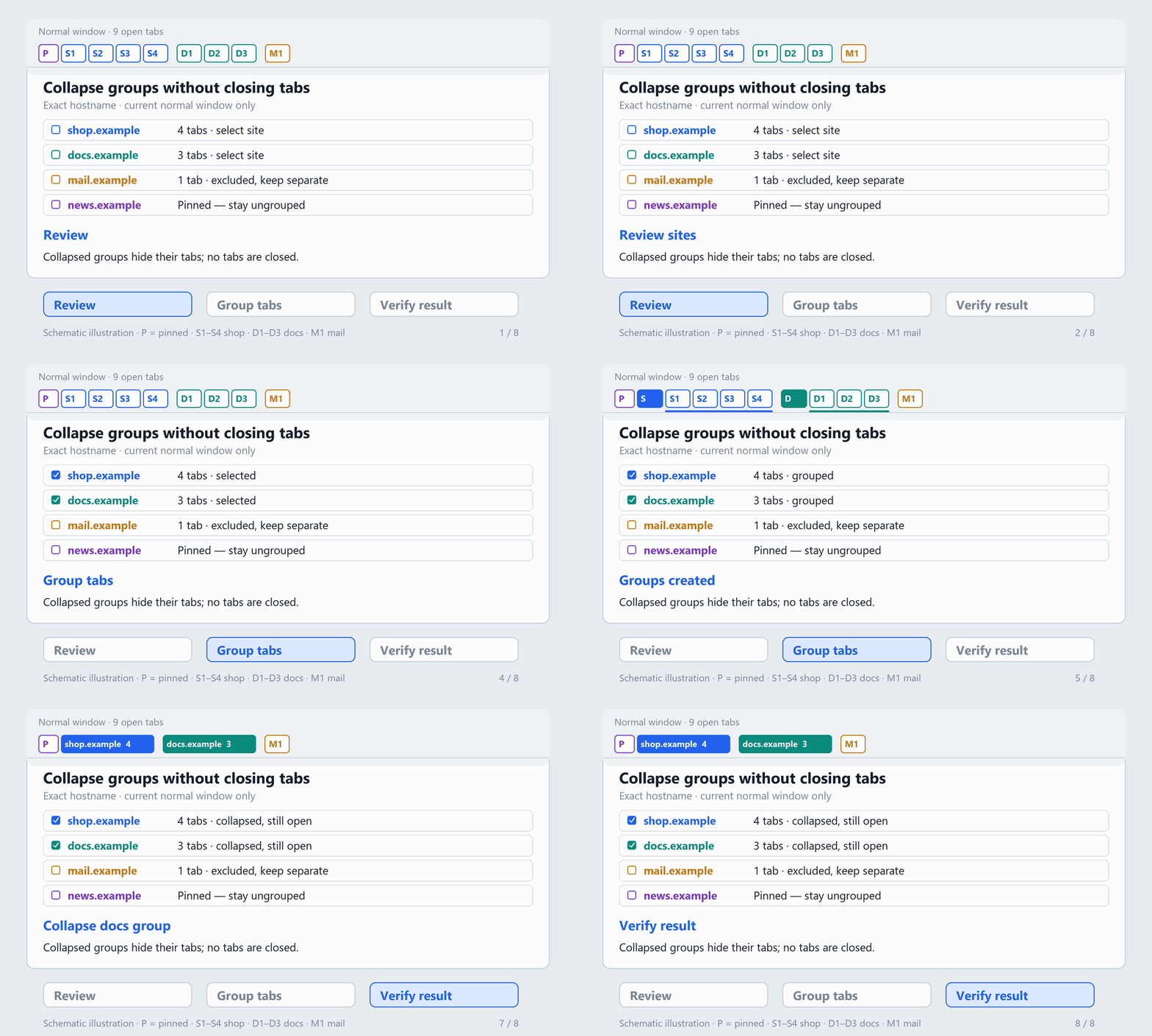
See how the preview handles mixed store and documentation tabs.
Define the group before changing the tab bar
For a site-based project group, use two membership conditions: the tab has the exact hostname you selected, and it is eligible for grouping. A pinned tab fails the second condition, so matching the site alone is not enough.
This keeps a persistent reference page separate from temporary project pages. You do not need to unpin it, duplicate it, or move it into the group to make the project useful.
Exact hostnames also prevent an overly broad selection. shop.example.com and docs.example.com are different hosts, even though both sit under example.com. Group Tabs by Site uses this exact-host boundary by default; combining subdomains requires a separate explicit rule.
Classify an illustrative five-tab window
Consider a normal Chrome window with five tabs. This is an educational example, not a measured product test. The task is to collect two shopping pages while leaving ongoing references and unrelated reading alone.
| Open tab | Decision | Reason | |---|---|---| | Product page on shop.example.com | Include | Ordinary tab on the selected host | | Comparison page on shop.example.com | Include | Same exact host and current task | | Guide on docs.example.com | Exclude | Different hostname | | One-off news page | Exclude | Unrelated to the shopping task | | Pinned dashboard | Exclude | Preserve its pinned status |
For this example, the pinned dashboard can also be on shop.example.com. That makes the key decision explicit: the resulting shopping group should contain two ordinary tabs, not every open page from that host.
The documentation and news pages remain ordinary tabs outside the group. Their exclusion is a choice about this task, not a claim that Chrome cannot group a single page.
Preview membership and apply the group
For just two pages, Chrome's native controls are sufficient. On desktop Chrome, select the two ordinary tabs using Ctrl-click on Windows or Linux, or Command-click on macOS, then right-click a selected tab and use the option to add the selection to a new group. Check the wording in your Chrome version, and do not include the pinned tab in the selection.
When a longer tab bar makes membership harder to inspect, Group Tabs by Site provides a review step before changing the layout. Use the same rule as in the small example rather than selecting every site merely because it appears in the preview.
Review the exclusion list to ensure pinned dashboards remain separate.
- Select the normal Chrome window containing the five tabs. Keep other windows outside this operation.
- Review the proposed hostname groups. The two ordinary
shop.example.compages are the intended members of the shopping group. - Select
shop.example.com. Leavedocs.example.comand the news host unselected, and keep those single-tab sites separate. - Check the “Will stay ungrouped” column for the pinned dashboard and excluded pages. The pinned dashboard must remain outside the proposal even if its hostname matches.
- Review the proposed group name and color, then click “Group tabs”.
The tool creates a native browser group for the selected live tabs; it does not close the pages or save a session. If you deliberately select more normal windows later, grouping happens independently in each window rather than collecting tabs into one window.
Keep exceptions intact
Existing groups are left unchanged by default. If your real window contains one, do not explicitly choose to add tabs to it unless that is part of your task. The “Will stay ungrouped” column lists tabs outside the proposed groups; an already-grouped tab listed there is not a request to remove its existing group.
Private windows are excluded from the tool's scope. Do not unpin a page or bring unrelated tabs into scope just to make the preview look more complete. The goal is a useful group, not a tab bar where every page belongs to one.
Verify the result, then stop
Check the actual browser tab bar after applying the operation. The expected result is one shopping group containing the two ordinary store pages, with the pinned dashboard still pinned and outside that group. The documentation and news pages should remain ungrouped.
Open the group if necessary to inspect both members. Check membership rather than relying only on its label or color: a plausible name does not prove that the correct tabs were selected.
If the result differs, inspect any reported failure before making further changes. Group Tabs by Site offers undo for tabs still available, but later tab moves or group edits can create conflicts, and newly opened tabs are left untouched.
Stop once the two intended pages are grouped and the exceptions are preserved. To begin with your own tabs, select one normal Chrome window, review the hostname preview and pinned-tab exception, and apply only the intended site selection.
Verify the final layout and undo any accidental groupings if needed.