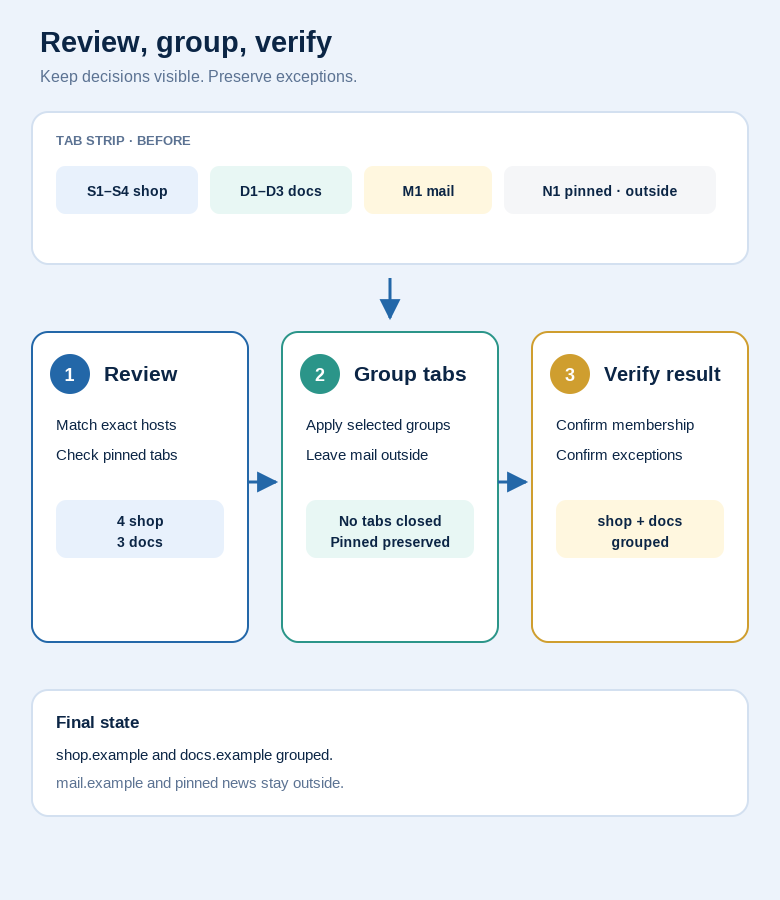
See how preview-and-select works for current tabs.
What “auto” means here
The automatic part is tab classification, not a persistent browser rule. The tool reads live tabs in selected windows and proposes groups based on their hostnames. You still decide which proposed groups should be created and whether single-tab sites should remain separate.
After you apply the selection, Chrome’s native groups contain the chosen tabs. A tab opened later is not automatically added to one of those groups. Existing groups also remain unchanged unless you explicitly choose an operation that adds selected tabs to an existing group in the same window.
This distinction matters when choosing a solution. For unattended grouping on tab creation, do not treat a preview-and-apply tool as a background automation rule. For a crowded tab bar that needs one reviewed cleanup, user-triggered grouping provides the relevant control without pretending to offer persistent automation.
Test an exact-host rule
Consider this illustrative example. One normal Chrome window contains:
- Two pages hosted on
shop.example.com. - One page hosted on
docs.example.com. - One one-off page from
news.example.net. - One pinned tab.
Suppose the intended rule is: group tabs from the exact host shop.example.com. Test each tab against that boundary before applying anything.
- The two
shop.example.compages match the rule. They are proposed as one site group in that window. - The
docs.example.compage does not match. A related brand or shared parent domain would not be enough to include it under an exact-host rule. - The news page does not match and remains outside the proposed shop group. Its one-off status is useful evidence that the task is selective, not “group every tab.”
- The pinned tab stays separate. It is shown among tabs that will remain ungrouped rather than being pulled into the new group.
Check exact-host rules against your current window.
The expected result is one proposed group containing the two shop tabs. The documentation tab, news tab, and pinned tab remain unchanged. This example is illustrative; it is not a measured product test.
Preview before applying
For a current tab set, start by selecting the normal window to organize. Review the proposed groups by hostname, including the tabs assigned to each group. Check the “Will stay ungrouped” area for pinned, excluded, or already-grouped tabs.
Next, select only the sites you want to process. Confirm whether a site with one tab should stay separate. Review the suggested group names and colors, then apply the operation only after membership matches your intended rule.
Group Tabs by Site creates groups independently in each selected window. It does not move matching tabs between windows, and private windows are excluded. If the same hostname appears in two windows, each window gets its own decision rather than one cross-window group.
What happens to later tabs?
Nothing in this workflow watches for future tab creation. A new shop.example.com tab opened after grouping stays where Chrome opens it. It does not join the earlier group automatically, and the existing group is not silently renamed, hidden, or rebuilt.
If the tab bar changes, run the review again and inspect the new proposals. This extra user action is the boundary between a repeatable cleanup workflow and persistent automatic behavior.
Use the native browser group controls afterward to collapse or expand groups as needed. If tabs or groups changed after the operation, undo may report conflicts and leave newer or manually changed items alone. For the current Chrome tab set, select a normal window and review the hostname groups before applying any changes; expect reviewed organization, not automatic grouping of newly opened tabs.