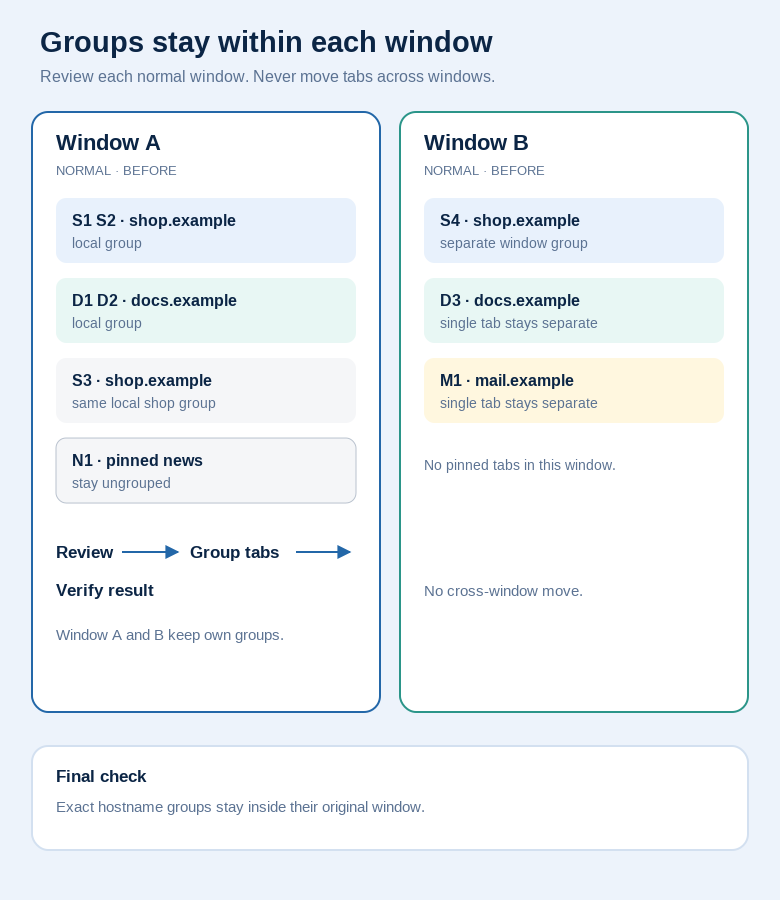
Use the tool to preview groups by exact hostname before applying changes to your live tabs.
Set the grouping boundary first
Start with the window you want to organize. The grouping operation works on selected normal Chrome windows, and each window is handled independently. Tabs from the same site in two different windows are not moved across windows or combined into one cross-window group.
Use the full hostname as your default boundary. For example, shop.example.com and docs.example.com represent different sites for grouping purposes, even when both belong to the same organization. Do not combine subdomains merely because their brand name is similar. Combining them requires a separate, explicit rule.
Before changing anything, decide what counts as a useful group:
- Include a site when its open tabs support the same task or clearly belong together.
- Keep a one-off site outside the groups if creating a group for one tab adds no value.
- Leave pinned tabs separate.
- Leave private-window tabs outside this workflow.
- Leave existing groups unchanged unless you explicitly choose to add tabs to one.
This rule gives you a stopping point. The goal is not to classify every visible tab. The goal is to create useful site groups while preserving tabs that do not belong.
Worked example: review membership before grouping
Consider this illustrative Chrome window:
- Two ordinary tabs use
shop.example.com. - One ordinary tab uses
docs.example.com. - One tab opens a one-off news site.
- One tab is pinned.
The first hostname produces a clear group candidate. Both shop tabs share the exact hostname, so they can form one group. Their different page paths do not matter: /products and /orders still belong to shop.example.com under this rule.
The documentation tab is a separate candidate because docs.example.com is not shop.example.com. You can include it if a one-tab group is useful for your work. Otherwise, choose to keep single-tab sites separate. Do not include it automatically just to make the tab bar look more complete.
The news tab stays outside. It has no matching hostname in this set and is a one-off page. The pinned tab also stays outside, regardless of its hostname. Its pinned status is an explicit exception to the grouping decision.
Expected result: one group for the two shop tabs, with the documentation tab either in its own selected group or left ungrouped according to your choice. The news tab and pinned tab remain unchanged. This is an educational example, not a measured product test.
Review proposed groups in Chrome
For a larger tab bar, Group Tabs by Site can classify open tabs before it changes them. The preview shows proposed hostname groups, including their tabs, names, and colors. It also shows a “Will stay ungrouped” column for pinned, excluded, and already-grouped tabs.
Use the preview as a membership review rather than accepting every candidate:
- Select the normal Chrome window or windows to organize.
- Inspect each proposed hostname group and its listed tabs.
- Select the sites you want to group.
- Decide whether a site with only one tab should remain separate.
- Check the ungrouped column for the news tab, pinned tab, excluded sites, and any existing groups.
- Review group names and colors, then choose “Group tabs.”
In the example, select shop.example.com. Select docs.example.com only if its single tab deserves a group. Do not select the news site, and do not expect the pinned tab to join a proposed group. The preview lets you catch these decisions before live tabs are reorganized.
The operation creates native browser groups without closing the selected live tabs. Groups are created independently in each selected window. If the same hostname appears in two normal windows, review and apply the choice for each window; no tab crosses the window boundary.
Verify what changed
After grouping, inspect the tab strip in every selected window. Confirm that both shop tabs are together, the documentation tab matches your single-tab decision, and the news and pinned tabs remain outside. Also check that unrelated existing groups were not changed.
You can collapse resulting groups with Chrome’s own group controls when you want a shorter tab bar. Collapsing is separate from membership: it changes visibility in the tab strip, not which tabs belong to the group.
If the result is wrong, undo may restore the previous layout where affected tabs are still available. Tabs closed after grouping, newly opened tabs, or manual changes can create conflicts. Review those conflicts instead of assuming undo will reverse every later edit.
Common membership mistakes
Grouping by brand instead of hostname
A shared company name does not make shop.example.com and docs.example.com one default group. Keep them separate unless you have deliberately chosen a broader rule.
Treating every candidate as useful
A single news page or documentation page does not need a group automatically. Review the purpose of the group, then leave one-tab sites outside when the group would add clutter.
Expecting pinned tabs to move
Pinned tabs remain separate. Include this exception in your review rather than treating it as a failed grouping operation.
Assuming existing groups will be rebuilt
Existing groups are left unchanged by default. Adding tabs to one requires an explicit choice, and it only applies within the same window. Finish with a visual check so the final tab bar reflects the scope you intended.