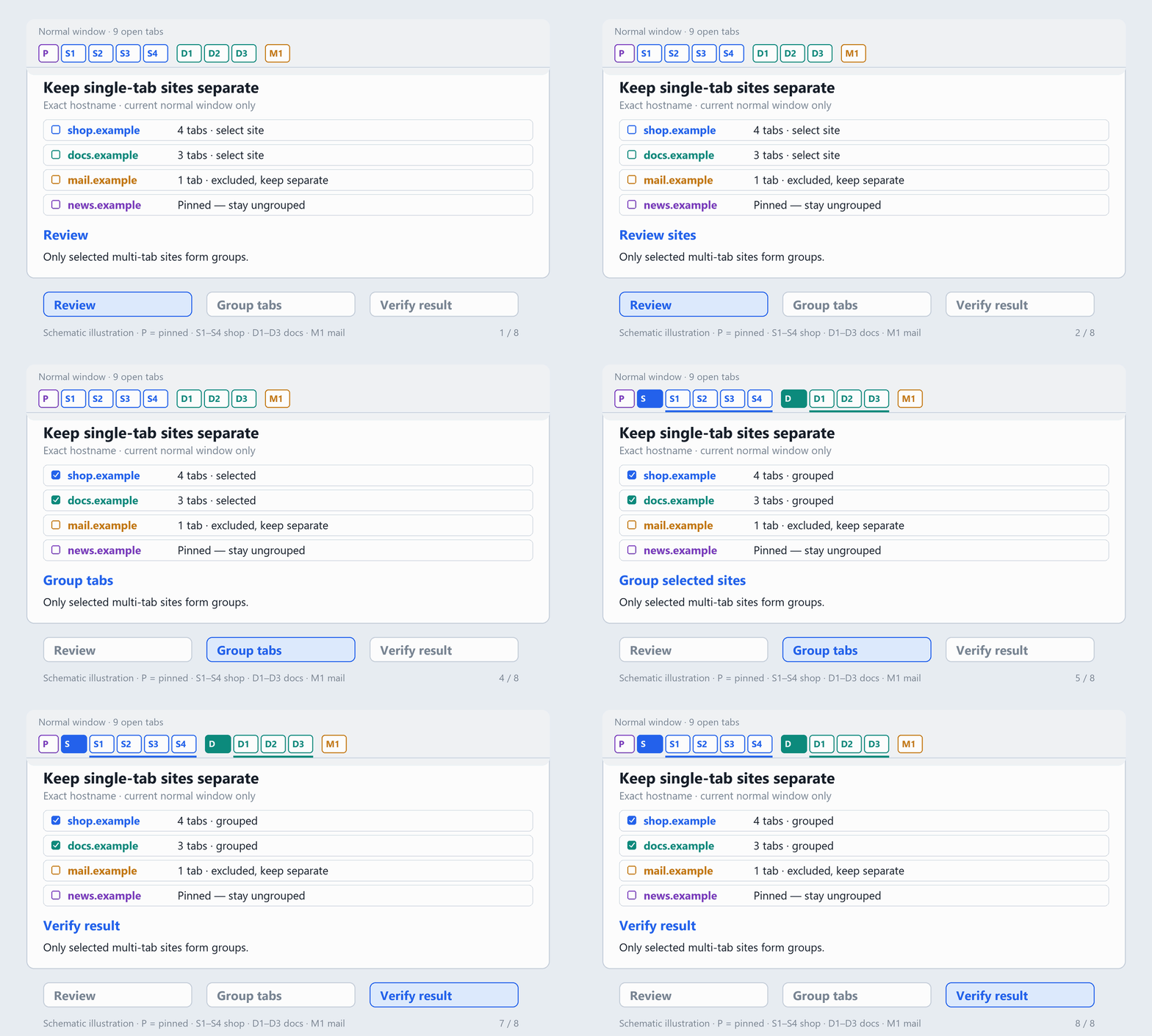
Preview exact-host groups before you apply them
Start with a fixed group boundary
Audit the tabs already open instead of grouping by topic alone. A topic can span several services, but exact-host grouping gives each proposed group a repeatable boundary: tabs with the same hostname qualify, while pages from another hostname do not qualify merely because they support the same task.
Keep window scope separate. Groups are created independently in each selected window, and tabs are not moved between windows. Private windows are excluded. Pinned tabs also stay outside the proposed groups, so do not treat their presence as a failed grouping decision.
Before changing anything, decide what the group must represent. For example, “pages from shop.example.com in this normal window” is testable. “Everything related to shopping” is too broad because it could pull in payment, delivery, review, and news pages that belong to different sites.
Worked example: audit membership before grouping
Consider this illustrative tab set in one normal Chrome window:
- Two ordinary pages on
shop.example.com - One ordinary page on
docs.example.com - One one-off page on a news site
- One pinned tab
The purpose is to audit group membership, not to reorganize every tab in the window.
Classify each tab
- Include both
shop.example.compages as candidates for one group. They share the exact hostname, so they meet the membership rule. Their paths or page titles may differ; the hostname remains the grouping boundary. - Keep the
docs.example.compage outside that group. It has a different hostname and only one tab in this example. It can remain visible as a separate tab rather than being pulled into the shop group. - Keep the one-off news page outside. Its subject might relate to the shopping task, but its hostname does not match, and grouping it would weaken the rule.
- Keep the pinned tab outside. Pinned tabs are handled separately and remain ungrouped by the site-grouping operation.
The resulting decision is narrow: group the two shop tabs, leave the documentation, news, and pinned tabs unchanged. Stop there. Do not broaden the task to create a general “shopping research” group unless you have a separate rule and have reviewed every additional site.
Apply the decision in Chrome
Native Chrome groups can be created manually, but dragging tabs one by one makes membership auditing harder when many pages are open. Group Tabs by Site supports the review step by showing proposed hostname groups before applying them. Use it as a classification and selection step, not as a replacement for deciding what belongs together.
Leave one-off and pinned tabs outside the site groups
- Select the normal Chrome window that contains the tabs. If the same site is open in another normal window, treat that window as a separate scope.
- Review the hostname preview. For the example, locate the proposed
shop.example.comgroup and confirm that both shop tabs appear in it. - Choose which sites to group. Select
shop.example.comonly. Leavedocs.example.comand the news hostname unselected. - Set single-tab sites to stay separate. This keeps the documentation and news tabs outside the operation instead of turning each into a one-tab group.
- Review the “Will stay ungrouped” list. Confirm that the pinned tab appears there, along with excluded and already-grouped tabs when applicable.
- Apply “Group tabs” only after the preview matches the intended membership.
The previewed result is the useful control here: it lets you inspect proposed membership before the live tab layout changes. Group names and colors can be reviewed as part of the proposal, but the browser supplies the available color choices.
Verify the resulting groups
After applying the operation, check the actual tab bar against the rule rather than judging only by the group label. The two ordinary shop.example.com tabs should be together in the selected window. The documentation and news tabs should remain outside, and the pinned tab should still be separate.
If a site is open in two normal windows, verify each window independently. A matching hostname in another window does not justify moving or combining those tabs across windows. The operation creates groups per window, so separate window groups are expected.
Existing groups also need a separate check. They remain unchanged by default. Adding tabs to an existing group requires an explicit choice, and that choice still applies only within the same window. Do not assume that a matching hostname automatically changes a group that already exists.
Common membership mistakes
Grouping by brand name can produce the wrong result when related pages use different hostnames. shop.example.com and support.example.com are not one exact-host group by default. Combining subdomains requires a separate, explicit rule; a shared brand name is not enough.
Selecting every proposed site defeats the audit. Single-tab sites may be useful to leave visible, especially when they are one-off references. A group should answer a specific navigation need, not merely reduce the number of visible tab positions.
Do not expect grouping to save the session, rename unrelated tabs, hide pages, or trigger automatically. It organizes live tabs in selected normal windows. If the arrangement changes afterward, undo is available only for tabs that remain available, and manual moves or group edits can create conflicts.
For the example, the correct stopping point is simple: one group for the two exact-host shop tabs, with the documentation, news, and pinned tabs preserved outside it. Select a normal Chrome window, review the hostname preview and exceptions, then choose intended sites before applying.