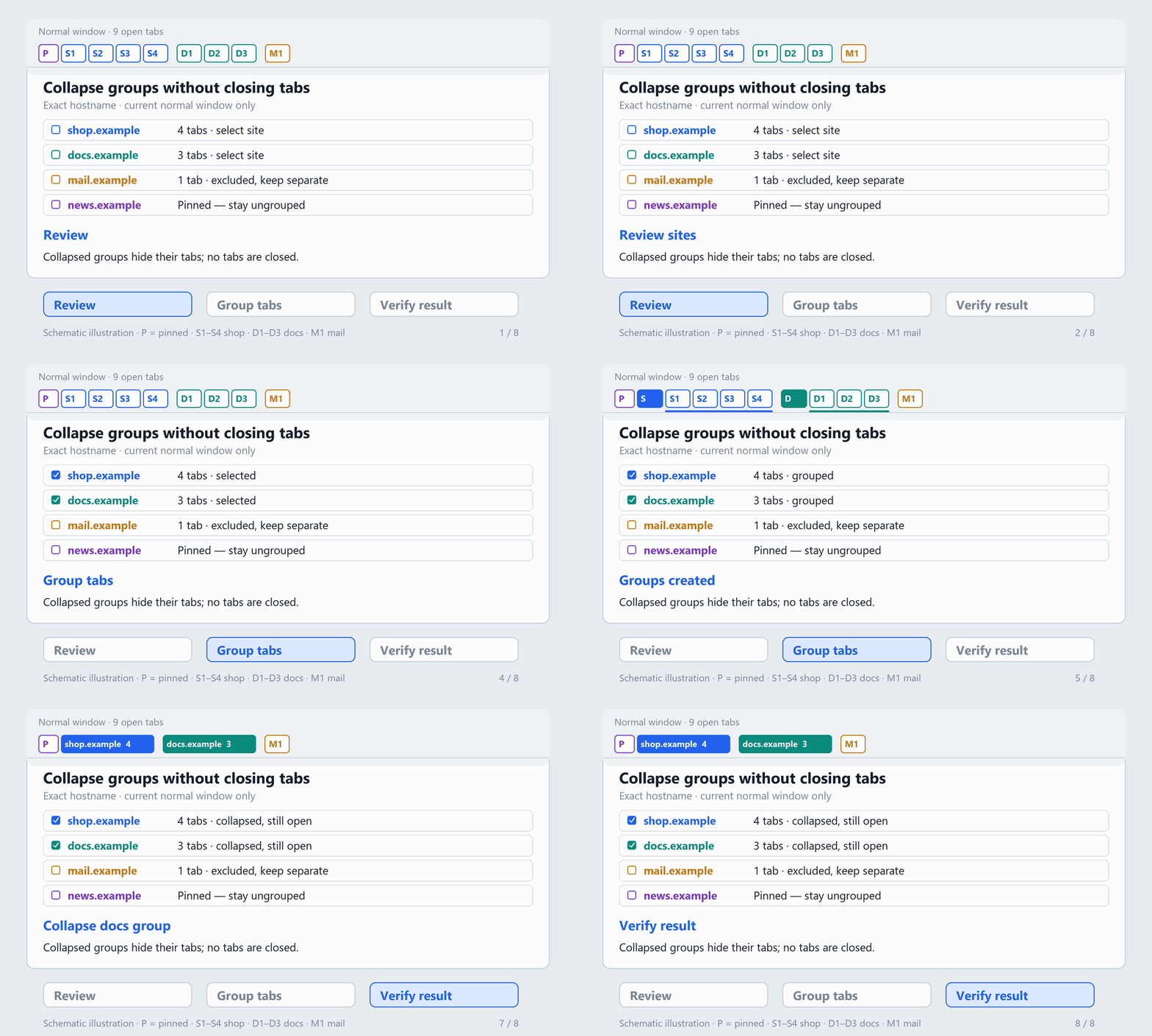
What collapsing a tab group does
The distinction matters when a crowded tab bar needs less visual noise. Collapse is a visibility change for an existing group. Close removes tabs, hide may refer to a different browser or extension feature, and ungroup leaves the pages open as ordinary tabs. Do not use close or ungroup when your goal is to park work temporarily.
How to collapse existing groups in Chrome
- Open the normal Chrome window containing the groups. A group belongs to one window, so first check that you are working in the correct window.
- Find a labeled group in the tab strip. The label or colored group marker identifies the control for that group.
- Click the group label or marker once. Chrome compresses the group to its label and removes the member tabs from the visible strip.
- Repeat for each group that can be parked. Collapse groups individually unless your Chrome version visibly provides another control; do not assume a universal “collapse all groups” shortcut.
- Click a collapsed label to reopen it. The member tabs should appear again inside the group.
Chrome's exact menu wording and layout can vary by version and operating system. If clicking the label selects or activates the group but does not collapse it, open the group's context menu and look for a collapse command. Use only a command that is visibly available in your browser rather than relying on an undocumented shortcut.
Decide which groups to collapse
Collapse groups whose pages remain useful but do not need constant access. Leave a group expanded when you are moving between its tabs, comparing pages, or monitoring a live task. A collapsed group is still open, so it can continue using resources and may still show activity through the browser's normal indicators.
For several groups, make the decision separately for each label. A compact tab bar is not proof that every page is hidden or closed. After each action, verify that the label remains present and that no unrelated tabs moved into or out of the group.
Example: many tabs, selective collapse
Consider this illustrative Chrome window:
- Two pages use the exact hostname
shop.example.com. - One page uses
docs.example.com. - One page is a one-off news tab.
- One tab is pinned.
Suppose the two shop pages already belong to a labeled group. Collapse that group if shopping pages are reference material rather than the current task. The two pages stay members of the same group and can be restored by clicking its label.
Treat docs.example.com as a separate hostname. If its page is not already in a group, there is no group to collapse; leave it as an ordinary tab. Do not place it into the shop group merely because both sites support the same project. Exact hostname boundaries prevent that assumption.
Leave the one-off news tab outside the operation. It has no group label and should not be treated as a collapsed group. Keep the pinned tab separate as well: pinned status is a separate tab-bar state, not evidence that the tab belongs to a group.
If the window has another existing labeled group, evaluate it using the same rule and collapse it only when its pages can remain parked. This produces several individually collapsed groups without claiming that Chrome has a supported command to collapse every group at once.
Verify before continuing
After collapsing a group, click its label once to reopen it. Check that its original pages return, their order is reasonable, and the group still has the expected name or color. Reopening is the practical test that you changed visibility rather than closing or ungrouping the tabs.
If a page is missing, stop and inspect the tab strip, recently closed tabs, and the group membership before repeating actions. Do not broaden the operation to ungrouped, pinned, or single tabs when the task is only to collapse existing groups.