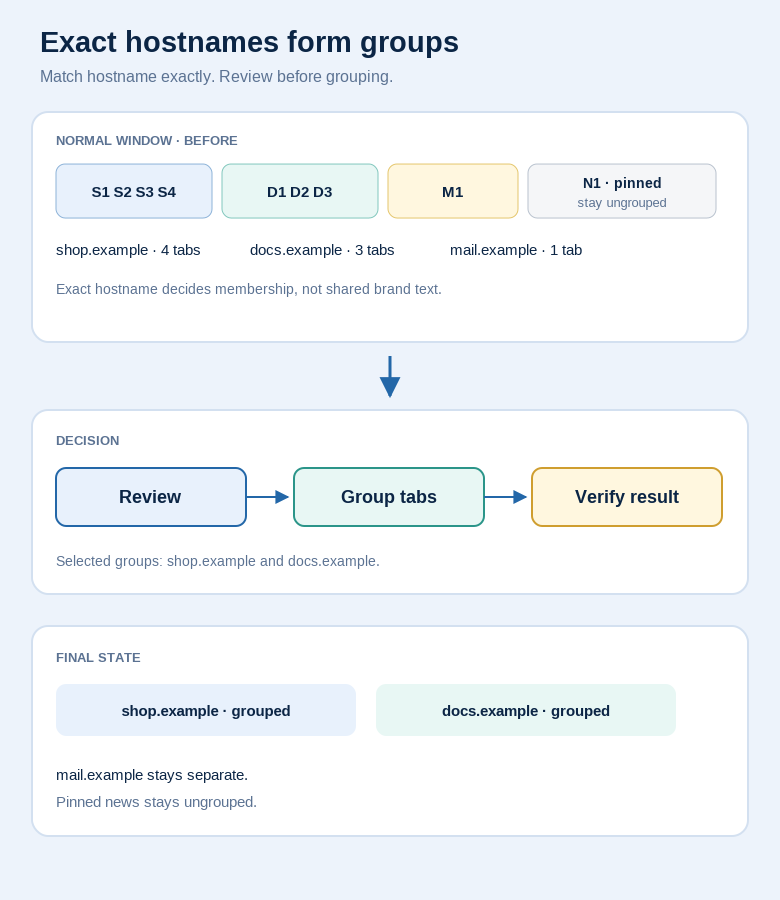
Use Group Tabs by Site to preview these hostname boundaries before applying changes.
Parse the URL before grouping
A URL contains several parts, but this decision uses two of them:
- Hostname identifies the host serving the page, such as
shop.example.com. - Path describes the location on that host, such as
/products/42or/cart.
Paths do not create separate site groups in a hostname-based workflow. Product pages, search results, account pages, and help pages remain candidates for one group when their hostnames match exactly. The path still helps you recognize each tab during review; it does not change membership.
Subdomains are a separate boundary. shop.example.com, docs.example.com, and mail.example.com are different hostnames. A shared brand or registrable domain is not enough reason to combine them. Broader subdomain grouping requires a separate, explicit rule rather than an assumption that all related names represent one site.
Worked Chrome example
Consider this illustrative tab set in one normal Chrome window. It is an educational classification example, not a measured product test:
https://shop.example.com/products/42https://shop.example.com/carthttps://docs.example.com/returnshttps://news.example.net/story- A pinned tab, regardless of its URL
The first two tabs have the same hostname, shop.example.com. Their different paths do not matter, so they form one proposed site group. The documentation tab has hostname docs.example.com; keep it outside the shop group. The news tab belongs to an unrelated hostname and is also outside it.
The pinned tab stays separate. Do not include it merely because its hostname matches another tab. Pinned status is an independent exception from URL classification.
The documentation and news tabs each occur once in this example. If the grouping workflow offers a choice for single-tab sites, leave those sites ungrouped when the aim is to create meaningful multi-tab groups. Nothing requires a one-tab site to become a group. The expected result is one proposed shop.example.com group, with the documentation tab, news tab, and pinned tab remaining outside it.
Verify membership before applying changes
A hostname preview makes the boundary easier to inspect than dragging tabs by appearance. Group Tabs by Site can show proposed hostname groups, their tabs, and a separate area for pinned, excluded, or otherwise ungrouped tabs.
Use this sequence:
- Select the relevant normal Chrome window. Private windows are excluded.
- Read each proposed group by hostname, not by brand name or URL path.
- Open the group details and confirm that both
shop.example.comtabs appear together. - Confirm that
docs.example.com,news.example.net, and the pinned tab remain outside. - Leave one-tab sites separate if that matches your purpose.
- Select only intended sites, then apply grouping.
Existing groups remain unchanged by default. Adding tabs to an existing group requires an explicit choice and applies only within the same window. If the same hostname is open in another normal window, review that window separately; grouping does not move tabs across windows. Each selected window gets its own result.
Common hostname mistakes
Do not group by the visible page title. Two pages can have similar titles while using different hosts. Do not group by the path alone either: /docs on shop.example.com and /docs on docs.example.com are still different hostname cases.
Also check the full host before applying a broad selection. Treating every *.example.com address as one site may place documentation, administration, and customer-facing pages together. Stop at the exact-host boundary unless you deliberately need a wider rule.
After applying, inspect the resulting groups and confirm that unchanged tabs stayed unchanged. The workflow organizes live tabs; it does not save a session, hide tabs, or trigger itself automatically. For a controlled answer to “google chrome tab groups by domain,” select the normal window, inspect exact hostnames, and choose only the proposed groups whose membership you can verify.