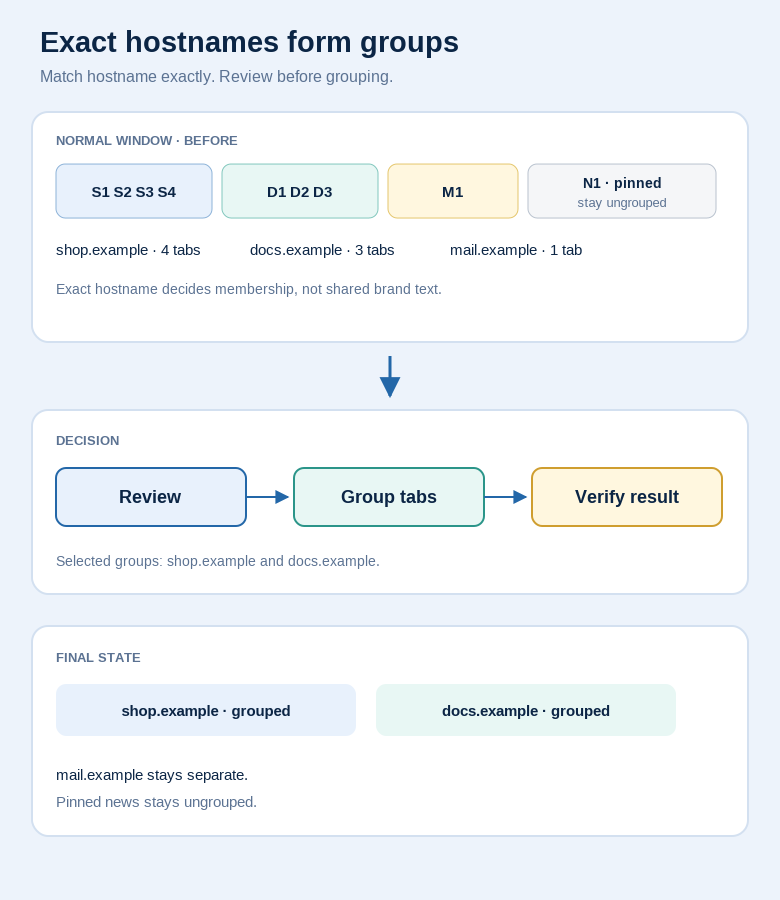
Parse each URL before grouping
Start with the hostname, not the page title or the visible brand name. In a URL such as https://shop.example.com/products?id=4, the hostname is shop.example.com; /products is the path, and the query string does not change site membership.
For each open tab, record two values:
- Hostname, such as
shop.example.comordocs.example.com. - Path, such as
/products,/cart, or/api/intro.
Use the hostname to decide membership. Use the path only to understand what each page does. Two pages with different paths still match when their hostnames are identical.
Exact host versus subdomain
An exact-host rule treats each hostname as its own group. shop.example.com and docs.example.com are therefore separate, even though both end in example.com. The same applies to www.example.com, support.example.com, and account.example.com.
A broader “same organization” rule could combine these subdomains, but that is a different decision. Do not broaden the boundary because pages use the same logo, company name, or registrable domain. Combining subdomains can mix unrelated workflows, permissions, or audiences.
The reverse mistake also causes trouble: treating paths as separate sites. shop.example.com/products and shop.example.com/orders have different paths but the same hostname, so they belong to one exact-host group.
Worked example: five tabs, three decisions
Consider this illustrative set in one normal Firefox window:
https://shop.example.com/productshttps://shop.example.com/carthttps://docs.example.com/getting-startedhttps://news.example.net/story/42- A pinned tab for
https://mail.example.org
The two shop.example.com tabs qualify for one group. Their paths differ, but their hostnames match exactly. The documentation tab stays outside that group because docs.example.com is a different hostname; create a separate group only if there are enough tabs and that separate group serves a clear purpose.
The news tab is a one-off site. Keep it ungrouped when the grouping decision is meant to collect repeated hosts rather than create a group for every tab. The pinned mail tab also stays separate. Pinned tabs are commonly reserved for persistent navigation, and a grouping operation should not be assumed to move or alter them.
The expected result is a membership plan, not an automatic claim about Firefox’s controls: one proposed group for the two shop tabs, no shop group membership for the documentation or news tabs, and no change to the pinned mail tab. Confirm the actual Firefox version and any extension’s supported tab-grouping controls before applying changes.
Review membership before applying changes
A preview or checklist should show the hostname used for each proposed group and list tabs that will remain outside it. Check that every proposed member has the exact hostname you intended. If a preview combines shop.example.com and docs.example.com without an explicit rule, stop and correct the rule rather than accepting the broader grouping.
Also check whether the operation targets one normal window or several. Make the classification independently in each selected window. A matching hostname in two windows does not mean tabs should move between windows; window scope is part of the membership decision.
Common mistakes
Grouping by brand name
Brand labels are not reliable boundaries. A company may use separate subdomains for shopping, documentation, accounts, and support. Compare hostnames directly instead of grouping every page that appears related.
Ignoring pinned status
A pinned tab can match a hostname that appears in ordinary tabs, but matching text does not remove its pinned status. Mark pinned tabs as excluded before reviewing the proposed result.
Creating groups for isolated tabs
Single-tab groups add labels without solving a repeated-tab problem. Leave one-tab sites separate unless a specific workflow requires a dedicated group.
Assuming Firefox behavior
Browser support, extension permissions, existing groups, and pinned-tab handling can vary. Verify the current Firefox documentation and the selected tool’s preview before making changes. The safe test is simple: confirm exact-host membership, confirm excluded tabs remain listed, and then inspect the resulting tab bar.