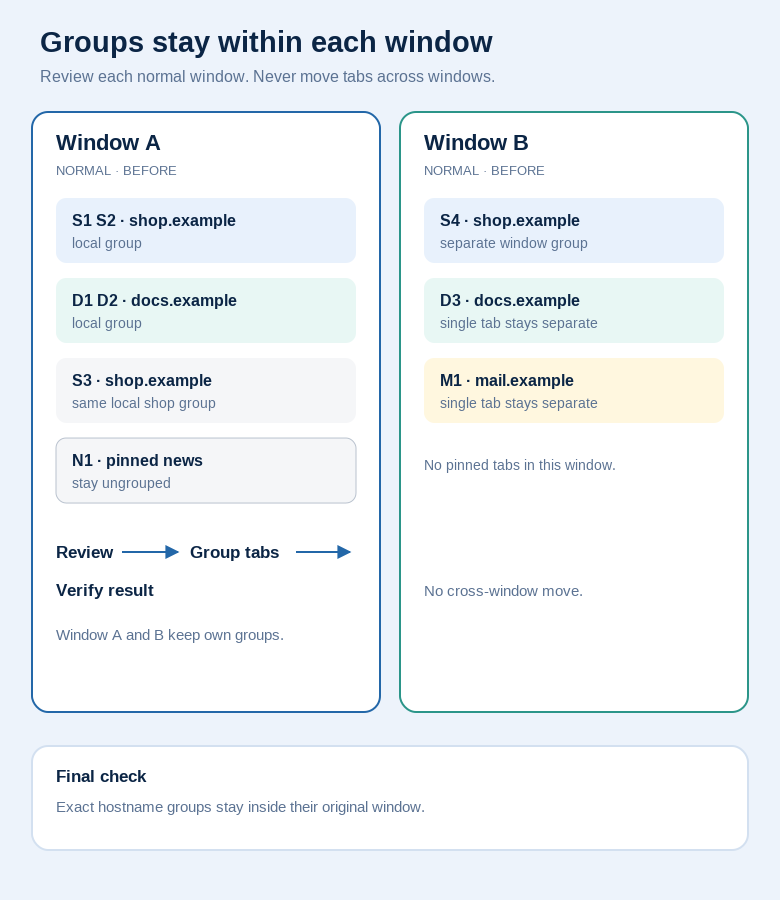
Preview proposed hostname groups before applying any change
Start with task and browser
Write down the task before comparing tools. Is the goal to organize live tabs in one normal Chrome window, or to save a session, move tabs between windows, or process private windows? These are different requirements.
Record the Chrome version and confirm that the candidate supports Chrome Tab Grouping in that environment. Do not treat support for another browser as verified unless its documentation and behavior have been checked. A tool that groups live tabs may not save them for later, and a tool that previews groups may not run unattended.
Decision matrix for a real workflow
| Check | Native manual groups | Reviewed grouping extension | Claim to reject without proof | |---|---|---|---| | Small tab set | Usually sufficient | Bulk classification may be unnecessary | “Required for every workflow” | | Many tabs by site | Requires repeated selection and dragging | Previews hostname groups before applying | “Groups every related site” | | One-tab sites | You decide manually | Choose whether singleton sites stay separate | “Every tab becomes a useful group” | | Pinned tabs | Keep them under browser rules | Shows them outside proposed groups | “Pinned tabs are reorganized automatically” | | Existing groups | Manual edits can change them | Left unchanged by default | “No existing layout can change” | | Recovery | Depends on manual reversal | Undo may restore available tabs | “Perfect undo after every later edit” | | Saved sessions | Requires a separate browser feature or workflow | Not provided by live grouping alone | “Grouping equals session saving” |
The key question is whether the extension lets you inspect membership before changing tabs. A preview should identify hostname, included tabs, singleton handling, and tabs that will stay ungrouped. It should also state its window boundary: groups are created independently in each selected window, not merged across windows.
Work through singleton and pinned exceptions
Decide whether single-tab sites stay separate
Use this illustrative Chrome case: one normal window contains two pages on shop.example.com, one page on docs.example.com, a one-off news tab, and one pinned tab. The purpose is to test decisions, not to report a measured product test.
- Set the scope. Select this normal window only. A private window is outside the supported workflow, and other-browser behavior remains unverified.
- Review the shop pages. Both pages have the exact hostname
shop.example.com, so they are candidates for one site group. Their different URL paths do not create separate membership decisions here. - Resolve the documentation singleton.
docs.example.comhas one tab. If the task is to group sites with multiple pages, leave it separate. If the workflow benefits from a labeled group for every site, select singleton grouping explicitly. Do not let a default decide silently. - Leave the news tab alone. Its one-off hostname does not belong to the shop group. It remains unchanged unless separately selected under a broader rule.
- Keep the pinned tab separate. Pinning is an exception to the proposed groups. Confirm that it appears in the ungrouped or excluded view, rather than assuming the extension can place it in a native group.
- Apply only after review. Select the shop group and any deliberate singleton choice, then apply. Existing groups stay unchanged unless you explicitly choose to add tabs to one in the same window.
Expected result: the two shop tabs form one proposed hostname group; the documentation tab is either visibly excluded or intentionally selected as a singleton; the news tab stays outside; and the pinned tab remains separate. The window, tab positions, existing groups, and excluded tabs should not be treated as changed merely because they appeared in the preview.
Check limits before choosing
A useful workflow distinguishes “previewed,” “selected,” and “changed.” Group Tabs by Site previews proposed groups by hostname, shows tabs that will stay ungrouped, and organizes selected live tabs in selected normal windows. It does not rename, hide, auto-trigger, or save tabs. Exact hostnames are the default boundary, so similarly branded subdomains should not be assumed to share a group.
Undo is also conditional. It can restore tabs that are still available, while closed tabs, manual moves, new tabs, or changed groups can create conflicts. The preview and explicit selection give a concrete basis for deciding whether bulk site grouping fits this workload; for Chrome, begin by selecting a normal window and checking proposed hostname membership before applying.